FSConfig - Funduc Software Configuration Utility - Replace Studio
FSConfig - Funduc Software Configuration Utility is a freeware configuration file editor for use with our Replace Studio Pro and Replace Studio Business Edition utilities.
'FSConfig' is used to more easily specify several program settings used by the programs:
- Application font face & size: The font face and size used by the program main window.
- Zip Masks: File name suffix treated by the program as a zip or archive file. The default setting is *.zip;*.jar;*.xlsx;*.docx;*.pptx
- Prompt to 'Fix Line Endings': By default the internal context viewer prompts to fix the line endings in a file if the file contains mixed line boundaries, e.g., some lines are 'Unix' and others are 'PC' format.
FSConfig runs on Windows Vista, Windows 7, Windows 8, and Windows 10 (32 & 64-bit versions).
See License Statements for the EULA agreement for 'FSConfig'.
FSConfig Main Window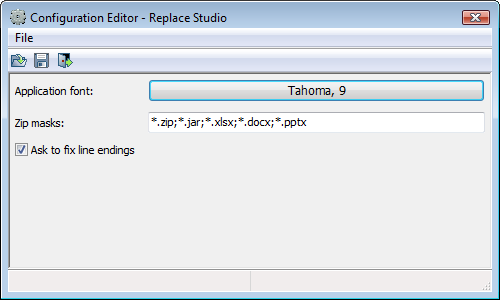
Usage
- Close Replace Studio Pro or Replace Studio Business Edition if either program is running.
- Launch FSConfig.exe
- Go to the FSConfig File Menu and select 'Open'. Ctrl+O does the same thing or the first item on the toolbar do the same thing.
- A 'Select Configuration File' dialog will open. Select either 'Replace Studio.cfg' or 'Replace Studio Business Edition.cfg' depending on which program you want to change. Note: If you have Funduc Software utilities that use a '.cfg' file for saving the program settings you will see other choices in the file list. Only select 'Replace Studio.cfg' or 'Replace Studio Business Edition.cfg'. Usage with the other programs is not currently supported.
- Make your desired changes.
- Save your changes via the File Menu, CTRL+S, or 2nd toolbar item.
- Close FSConfig.
Download FS Config
setupfsconfig.exe (1.8 MB) - This is the self-installing version of FSConfig - Funduc Software Configuration Utility for Replace Studio Pro and Business Editions. See Install & Uninstall Information for guidance about installation and removal. Download to a temporary directory and run 'setupfsconfig.exe' to install. The program is largely self-explanatory. A shortcut is created to usage documentation.
FSConfig.zip (0.8 MB) - This the a .zip version of FSConfig. To install, download this to a temporary directory and UnZip into the subdirectory of your choice. See 'Install.txt' and 'Readme.txt' in the zip for more information about install/uninstall and usage information.